
Microsoft Planner Guide
Master Task Management and Team Project Planning with Microsoft Planner
What is Microsoft Planner?
Microsoft Planner is a powerful project management tool that integrates seamlessly across your Microsoft 365 ecosystem. It allows you to manage groups of tasks through buckets, assign tasks directly to team members, and gain visibility across your entire team's workload. If you've ever wondered how to organise team tasks without a complex project management system, Planner is the project management tool you never knew you had.
Getting Started with Microsoft Planner
Getting up and running with Microsoft Planner is straightforward. Navigate to https://tasks.office.com/ and log in with your Microsoft 365 account. You'll be presented with a screen to create a new plan. From here, you can set up buckets (projects), create tasks, and begin organising your team's workload.
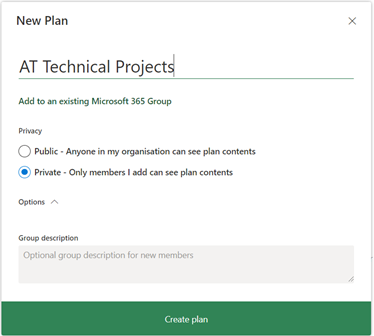
The Microsoft Planner interface provides an intuitive way to create and manage plans and tasks.
Task Features and Functionality
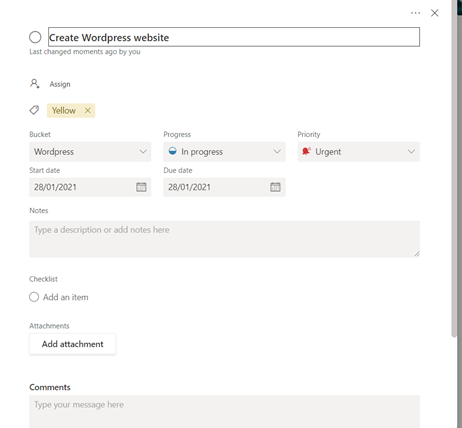
Microsoft Planner offers comprehensive features for managing individual tasks. For each task, you can:
- Create checklists to break down tasks into smaller, manageable subtasks
- Add attachments such as proposal documents, images, or reference files to keep everything in one place
- Assign multiple people or groups to collaborative tasks
- Set deadlines to keep your team on track
- Assign priority levels to help team members focus on what matters most
- Add comments to facilitate discussion and provide context
One particularly useful feature is the automatic email reminder system. When a task is overdue, all assigned members will receive an email reminder, ensuring nothing falls through the cracks.
Export Capabilities
Another cool feature is the ability to export your entire plan to an Excel file. This is helpful if you need to share the plan with a client or external party who doesn't have access to Microsoft Planner. It's also useful if you want to format the data differently or upload it to another project management portal.
Planner offers multiple built-in views for different perspectives on your tasks and project progress.
Understanding Planner Views
Microsoft Planner includes several built-in views that provide graphical representations of your tasks. These views display task statuses, priorities, and progress, giving you and your team a clear overview of the plan at a glance. The ability to switch between views helps different team members find the perspective that works best for their workflow.
Planner Within Microsoft Teams
Whilst Planner can be used as a standalone tool, the best practice approach is to integrate Planner directly within Microsoft Teams. This is the preferred method because it combines task management with team collaboration in a unified environment.
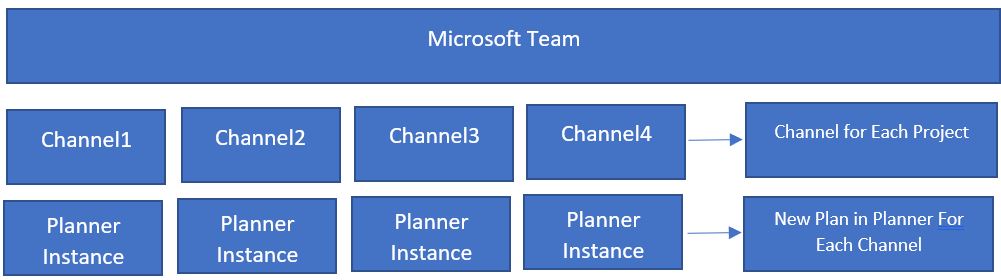
Planner architecture best practice: integrating with Teams provides security and access management benefits.
Why Teams Integration is Best Practice
When you create Planner plans within Teams, the plans inherit the naming structure of the Team and Channel (e.g., "TeamName – ChannelName – PlanName"). This naming convention is visible when you view plans in the Planner online app. More importantly, security and access permissions are inherited from the Microsoft Team itself. This means all members of the team automatically have access to the plan without requiring separate permission group management—a significant administrative advantage.
Adding Planner to Teams Tabs
Integrating Planner into your Teams channels is simple:
How to Add a Planner Tab to a Teams Channel
- In your Teams channel, click the + button at the top to add a new tab
- Search for "Planner" in the app directory
- Click "Tasks by Planner"
- Create a new plan and give it a friendly, descriptive name (e.g., "Project Name – Plan")
- The plan will now appear as a tab in your channel, and all instances will be visible in https://tasks.office.com/
Organising with Buckets
Buckets are a key organisational feature in Planner. Using buckets enables you to group related tasks into logical sections, creating a much cleaner and more intuitive interface. For example, you might organise tasks by project phase, department, or status.
💡 Bucket Best Practice
Arrange tasks into buckets for better grouping and organisation. This approach is particularly effective on mobile, where users can swipe across to view different buckets of tasks. We recommend limiting buckets to no more than 5 to avoid excessive scrolling and maintain a clean interface.
Filtering for Clarity and Control
As your plan grows, filtering becomes increasingly valuable. Microsoft Planner allows you to set multiple filters simultaneously, making it easy to refine your view to show exactly what you need to see. You might filter by assignee, priority, status, or deadline—or use combinations of these filters for even more targeted views.
Adding Planner to the Teams App
In addition to adding Planner to individual channel tabs, you can also access all your Planner instances through the Teams app menu:
How to Add the Planner App to Teams
- Click the 3 dots (…) on the far bottom left side of Teams
- Search for "Planner"
- Select the Planner app
- The app will display all plans you have access to, neatly grouped by Teams if created within Teams groups
- Plans created within Teams will appear under "Shared Plans" for easy navigation
Best Practices for Microsoft Planner Success
To get the most out of Microsoft Planner, follow these best practices:
📊 Use Visuals for Overview
Take advantage of Planner's visual displays to get an overview of how your plans are performing. The visuals show the number of tasks in progress, not started, late, and complete—giving you instant insights into plan health.
🏷️ Colour Code with Labels
Colour code your tasks using labels to provide an extra level of task grouping. Establish clear team rules about label usage (e.g., labels for priorities or areas of work) and ensure all team members understand and follow the standard procedures.
📎 Attach Rather Than Describe
Add attachments to tasks to avoid overloading the checklist or description fields. Keep task descriptions concise and use attachments for supporting documents, images, or reference materials.
✍️ Include Rich Task Information
Include as much relevant information as possible in each task, including detailed descriptions, assignees, priorities, and due dates. This makes it easier to group, filter, and manage tasks later.
📅 Leverage Dates for Calendar Views
Always add start dates and end dates to your tasks if you plan to use the calendar feature in Planner. This enables better timeline visualisation and helps with resource planning.
🔗 Integrate Across Microsoft 365
Integrate your Planner plans across Teams, SharePoint sites, and Outlook emails to gain better adoption among team members. The more places your team sees their tasks, the more likely they are to stay engaged.
👤 Assign Tasks for Clarity
Assigning tasks makes it much easier for Planner contributors to see what they should be working on across multiple plans. Team members can use the "Assigned to Me" button to get a consolidated view of all their tasks, streamlining their daily workflow.
Making the Most of Microsoft Planner
Microsoft Planner is a versatile, accessible project management solution that works exceptionally well for teams using Microsoft 365. Whether you're managing a small project team or coordinating across multiple departments, Planner provides the structure and visibility you need without the complexity of enterprise project management tools.
The key to success with Planner is establishing clear conventions around naming, labelling, and task organisation, then ensuring your team understands and follows these standards. When done well, Planner becomes an indispensable part of your team's daily workflow.
Ready to Optimise Your Team's Task Management?
Whether you're implementing Microsoft Planner for the first time or looking to improve how your team uses it, AT Technical can help you establish best practices and maximise adoption across your organisation.