
Power Automate Approval Workflows
A Step-by-Step Guide for UK Businesses — Cut Delays, Reduce Risk, and Keep Decisions Moving
Every day your business loses time — and money — waiting for approvals. A purchase order sits in an inbox. A contract waits for a sign-off that's delayed by an out-of-office. A new starter can't access systems because HR approval is stuck in an email chain. These aren't trivial inconveniences; they're operational bottlenecks that compound across every department, every week of the year. Microsoft Power Automate gives UK businesses a practical, low-cost way to replace manual approval chains with automated workflows that are faster, auditable, and fully under leadership's control.
The Hidden Cost of Manual Approvals
Most business leaders significantly underestimate how much time their teams spend chasing approvals. When you add up the hours spent sending reminder emails, checking whether someone has seen a request, and resubmitting lost paperwork, the figure is often startling.
Beyond lost time, manual approval processes carry real risk. There's no audit trail — so when a decision is challenged, you may have no record of who approved what, when, and on what basis. For regulated industries, that's a serious governance gap.
Signs Your Approval Process Is Costing You
- Staff send reminder emails to chase up decisions regularly
- Approvals frequently get delayed when someone is on holiday
- You can't easily retrieve a full audit trail of past decisions
- Requests are lost in busy inboxes and have to be resubmitted
- Different departments handle approvals in completely different ways
- New starters wait days or weeks for access and equipment approvals
What Is Power Automate — and Why Does It Matter to You?
Power Automate is Microsoft's workflow automation platform, included in most Microsoft 365 business licences. It connects your existing tools — Outlook, Teams, SharePoint, Dynamics, and hundreds of third-party systems — and automates the handoffs between them.
For approval processes specifically, Power Automate means that when someone submits a request — for budget, resource, leave, or anything else — the right people are notified instantly, can approve or reject with one click (from their phone, laptop, or Teams), and a full audit trail is recorded automatically. No emails to chase. No paperwork to file. No ambiguity over what was decided.
Already in Your Microsoft 365 Licence
If your business uses Microsoft 365 Business Basic, Standard, or Premium — or any Microsoft 365 Enterprise plan — you already have access to Power Automate. This is not an additional purchase for most UK businesses. You may be sitting on a capability you haven't yet unlocked.
The Most Valuable Approval Workflows for UK Businesses
Power Automate can automate approvals across virtually every function. These are the workflows our clients find most impactful:
How Power Automate Approval Workflows Actually Work
At a conceptual level, every approval workflow follows the same pattern: a trigger, a routing decision, an action, and a record. Here's what that looks like in practice:
The Core Building Blocks
- Trigger: Something initiates the workflow — a form submission, an item added to a SharePoint list, an email received, or a Teams message. Power Automate is watching for this event continuously.
- Condition: The workflow checks the details. Is the amount over £5,000? Is the requester in a specific department? Is it a priority request? These conditions determine the routing.
- Approval Request Sent: The appropriate approver receives a notification — in Teams, Outlook, or the Power Automate mobile app — with all the context they need to make a decision.
- Approver Responds: One click to approve or reject, with an optional comments field. This can be done from any device, anywhere — no need to log into a specific system.
- Actions Triggered: Approval triggers the next step — updating a record, sending a confirmation, creating a task, or moving to the next approver in a multi-stage flow.
- Full Audit Trail Recorded: Every decision, timestamp, and comment is logged automatically in SharePoint or Dataverse — retrievable in seconds for compliance, reporting, or dispute resolution.
Sequential vs. Parallel Approvals
Power Automate supports two fundamental approval patterns, and choosing the right one matters:
| Approval Type | How It Works | Best Used For |
|---|---|---|
| Sequential | Approvers are notified one at a time, in order. The next person only sees the request once the previous has approved. | Contracts, financial sign-off where senior review follows junior review |
| Parallel | Multiple approvers are notified simultaneously. The workflow waits for all — or a defined quorum — to respond. | Onboarding tasks, cross-department reviews where no dependency exists |
| First to Respond | Request goes to a group; the first person to action it completes the approval. | Shared team inboxes, customer-facing requests needing fast response |
| Escalation | If no response within a defined time, the request escalates automatically to a senior approver. | Time-sensitive decisions where delays have a direct cost |
A Real Example: Purchase Order Approval at a UK Business
To make this concrete, here is a full walkthrough of how a typical purchase order approval workflow is built for a UK business with 50–250 employees. This is one of the most commonly requested workflows we deliver — and one of the most impactful.
The Scenario
A company currently handles purchase order approvals by email. Staff send requests to their line manager, who forwards to Finance if the amount is over £1,000. There's no consistent format, approvals frequently get lost, and the Finance Director has no visibility until invoices arrive. The goal is to automate the entire process with appropriate controls and a full audit trail.
Approval Rules Agreed with the Business
- Under £500 — Line manager only
- £500 to £4,999 — Line manager, then Finance Manager
- £5,000 and above — Line manager, Finance Manager, then Finance Director
- Approvers have 48 hours to respond before a reminder is sent
- After 72 hours with no response, the request escalates to the next approver in the chain
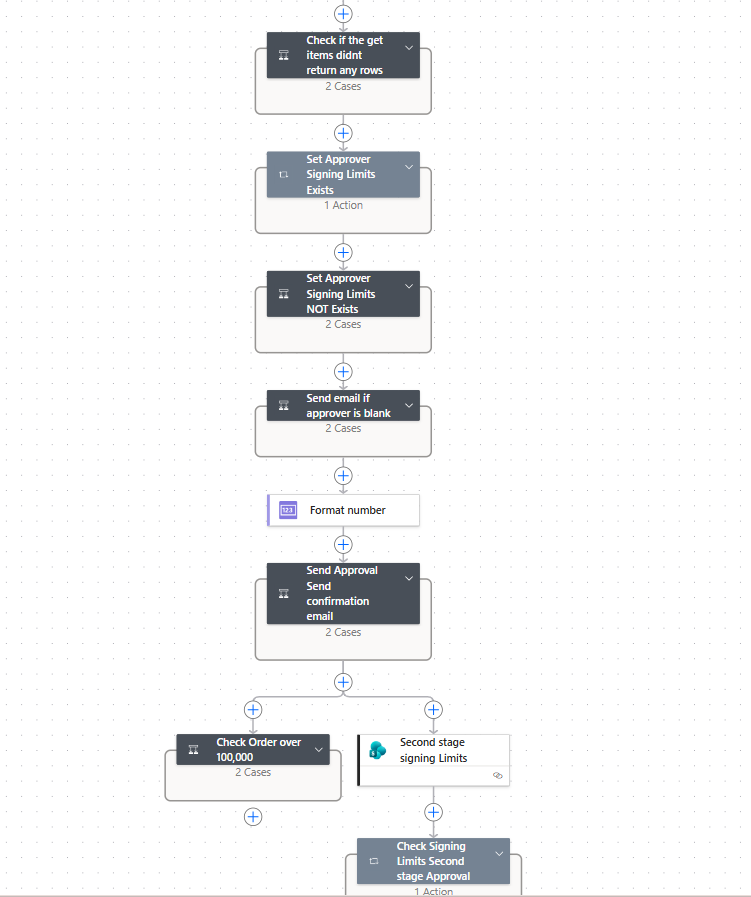
Step 1: Build the Submission Form (Microsoft Forms → SharePoint)
A Microsoft Form is created with the following fields: Requester name, department, supplier name, description of purchase, amount (£), expected delivery date, and business justification. On submission, Power Automate creates a new item in a SharePoint list called "Purchase Requests" — this list becomes the system of record for all requests.
Step 2: Trigger the Workflow
Power Automate monitors the SharePoint list for new items. The moment a new purchase request is added, the flow triggers. The first action retrieves the full details of the request — amount, requester, justification — and stores them as variables for use throughout the workflow.
Step 3: Route Based on Amount
A condition checks the amount field:
- If under £500: The flow sends an approval request directly to the requester's line manager (pulled from Azure Active Directory automatically — no manual lookup required).
- If £500–£4,999: The flow sends a sequential approval — first to the line manager, then (only if approved) to the Finance Manager.
- If £5,000+: Sequential approval through all three levels: line manager → Finance Manager → Finance Director.
Step 4: The Approver Experience
Each approver receives a notification in Microsoft Teams and Outlook simultaneously. The notification includes all the request details — supplier, amount, justification — plus an Approve and Reject button. Approvers can respond from their phone in seconds. If they want to add a comment or ask for more information, there's a comments field built into the approval card.
What the Approver Sees in Teams
- Purchase Request: Office Furniture — £2,400
- Requested by: Sarah Thompson, Operations
- Supplier: Furniture Direct Ltd
- Justification: Replacement chairs for the Manchester office following HSE review
- Expected delivery: 15 July 2026
- [Approve] [Reject]
- Comments: (optional field)
Step 5: Automatic Reminders and Escalation
If the approver hasn't responded within 48 hours, Power Automate sends a reminder automatically — no one has to chase manually. After 72 hours with still no response, the workflow sends the approval to the next person in the chain (e.g., if the line manager hasn't responded, it goes directly to the Finance Manager), and the line manager receives a notification that the request has escalated.
Step 6: Outcomes and Notifications
If Approved at All Levels
- The SharePoint record is updated to "Approved" with the approver name and timestamp at each stage
- The requester receives an email and Teams notification confirming approval
- A task is automatically created in the Finance team's Planner board to process the PO
- The Finance Director receives a weekly digest of all approved POs over £1,000
If Rejected at Any Stage
- The workflow stops immediately — no further approvers are notified
- The requester receives a notification with the approver's comments explaining the reason
- The SharePoint record is updated to "Rejected" with the rejection reason logged
- The requester can amend and resubmit — the new submission starts a fresh workflow
Step 7: The Audit Trail
Every action is automatically logged in the SharePoint Purchase Requests list: who requested, who approved at each stage, what time each approval was given, and any comments made. The Finance Director can run a Power BI report across this list at any time to see approval volumes, average processing time, most frequent requesters, and spending by department. This transforms a previously invisible process into a fully transparent and reportable one.
Results a Business Like This Typically Sees
- Average approval time reduced from 3–5 days to under 24 hours
- Zero requests lost in inboxes
- Finance team spends no time chasing approval confirmations
- Full audit trail available instantly — no manual filing
- Finance Director has real-time visibility of committed spend before invoices arrive
Building Your First Approval Workflow: Step by Step
You don't need a developer to build a basic approval workflow. But understanding the build process helps you ask the right questions when working with a partner — and ensures the workflow is designed correctly from the start.
Step 1: Define the Process Before You Build
The most common mistake is jumping straight into Power Automate before the process itself is properly defined. Answer these questions first:
Process Definition Checklist
- What triggers the approval request? (A form, an email, a record update?)
- What information does the approver need to make a decision?
- Who are the approvers — and does it change based on value, department, or type?
- What happens on approval? What happens on rejection?
- How long should an approver have to respond before escalation?
- Who needs to be informed of the outcome — and how?
- Where should the audit trail be stored?
Step 2: Build the Submission Form
Most approval workflows begin with someone submitting a request. Microsoft Forms or a Power Apps form feeding into a SharePoint list are the most common starting points. The form should capture everything the approver needs — no more, no less. Unnecessary fields slow adoption; missing fields lead to approvers asking for more information outside the workflow, breaking the process.
Step 3: Configure the Approval Action in Power Automate
Once your trigger is set up (typically a new item in a SharePoint list), you add the Approval action. Power Automate has a dedicated Approvals connector with built-in actions for the approval types covered above. You configure the approver(s), the title and details of the request, and the response options (Approve / Reject, or custom responses like Approve / Return for Revision / Reject).
Step 4: Build the Outcome Branches
After the approval decision, the workflow branches based on the outcome. A rejection might trigger an email to the requester with the approver's comments and a link to resubmit. An approval might update the SharePoint record, send a confirmation, and create a task in Planner for the relevant team to action.
Step 5: Add Escalation and Reminders
Set a time limit on approvals. If an approver hasn't responded within 48 hours (or whatever is appropriate for your process), a reminder is sent automatically. After a further period, the request escalates to a backup approver. This is where automated workflows genuinely outperform email chains — the chasing happens automatically, without anyone having to think about it.
Step 6: Test Thoroughly Before Go-Live
- Test as both the requester and the approver across different device types
- Test the rejection path, not just the approval path
- Test with a real approval that has to escalate — confirm escalation fires correctly
- Verify the audit trail records correctly in SharePoint
- Confirm mobile notifications work on iOS and Android
- Get sign-off from the process owner before rolling out to the wider team
Common Pitfalls — and How to Avoid Them
Pitfall 1: Building Without a Process Owner
Every approval workflow needs a named person responsible for it — someone who owns the process logic, approves changes, and is accountable when it doesn't work. Workflows built without a process owner become orphaned and break silently when staff change roles or leave.
Pitfall 2: Over-Complicating the First Build
Start simple. A workflow that automates the most painful 80% of the process is far more valuable than a complex workflow that takes months to build and never gets rolled out. Add complexity in iterations once adoption is established.
Pitfall 3: Not Handling Errors and Edge Cases
What happens if an approver's account is disabled? What if someone rejects accidentally? Workflows need error handling built in from the start — not added as an afterthought when something goes wrong in production.
Pitfall 4: Ignoring Licencing Boundaries
Standard Power Automate (included in Microsoft 365) covers most approval workflows. However, if your workflow needs to interact with premium connectors — such as Dataverse, SAP, or ServiceNow — additional Power Automate Per User or Per Flow licences are required. Factor this into your business case before building.
Pitfall 5: No Governance on Who Can Build Flows
Without a governance policy, staff across the organisation will build their own flows — some poorly designed, some connecting to systems they shouldn't. Establish a Centre of Excellence with clear standards for who can build, what connectors are approved, and how flows are named and documented. The IT department or a Microsoft partner can help set this up.
What to Expect: Timelines and Investment
One of the most common questions we hear from business leaders is: "How long does this take, and what will it cost?" Honest answers:
| Workflow Type | Typical Build Time | Licencing Required |
|---|---|---|
| Simple single-approver flow (e.g., basic leave request) | 1–2 days | Microsoft 365 (already included) |
| Multi-stage approval with escalation (e.g., purchase order tiered by value) | 3–5 days | Microsoft 365 (already included) |
| Complex cross-system workflow (e.g., onboarding across HR, IT, Payroll) | 1–3 weeks | May require Power Automate Per User |
| Enterprise approval framework (multiple workflows with governance layer) | 4–8 weeks | Power Automate Per User or Per Flow |
For most UK SMEs, the first meaningful approval workflow can be live within a week. The return on investment is typically measured in weeks, not months — particularly when you account for the staff time previously spent chasing, filing, and resubmitting approvals manually.
Making the Business Case Internally
When presenting this to your board or finance team, quantify the current cost: count the number of approval requests per month, multiply by the average time spent per request (including chasing), and multiply by the average hourly cost of the staff involved. For most businesses, this figure is significant enough to justify investment in automation on its own — before even accounting for risk reduction and faster decision-making.
Further Reading & Resources
📚 Microsoft Learn: Get Started with Approvals in Power Automate ⚡ AT Technical: Power Automate Services 🔧 AT Technical: Advanced Error Handling in Power Automate 🤖 AT Technical: AI Agents — Shift from Automation to Autonomous WorkflowsReady to Stop Chasing Approvals?
Approval bottlenecks are a solvable problem. Power Automate can eliminate the delays, reduce the risk, and give you full visibility over decisions across your business — using tools you most likely already pay for.
What AT Technical Delivers:
- Process review to identify your highest-value approval automation targets
- End-to-end design, build, and testing of your workflows
- Escalation logic, error handling, and audit trail configuration built in from day one
- Governance framework so the right people build the right things
- Training for your team so you're self-sufficient going forward
- Ongoing support as your workflows grow and evolve
We work with UK businesses of all sizes — from growing SMEs to established enterprises — to implement Power Automate workflows that deliver immediate, measurable results.
Book a Free Power Platform Consultation