
OneDrive Administrators Guide
Where is the One Drive Admin Center? Learn how to Master OneDrive Administration: Settings, Access Control, and Best Practices for Enterprise Management
Understanding OneDrive Administration
OneDrive administration can seem complex at first glance, but understanding its architecture and how it integrates with SharePoint makes managing your organisation's cloud storage straightforward and efficient. This comprehensive guide walks you through the key admin functions, settings, and best practices you need to know.
OneDrive Framework: The SharePoint Connection
One of the most important things to understand about OneDrive administration is that each provisioned OneDrive account is fundamentally its own SharePoint site. OneDrive uses SharePoint as its backend infrastructure, with the OneDrive application layered on top of SharePoint. This architecture has significant implications for how you manage and administer OneDrive across your organisation.
Because each user's OneDrive is essentially a SharePoint site, centralised admin settings for OneDrive are located within the SharePoint Admin Center rather than a separate OneDrive admin portal. It is not the easiest to locate hence many admins struggle to find the settings to administer OneDrive, tenant-wide settings for OneDrive are stored in the same admin portal as SharePoint, creating a unified administration experience.
Furthermore, whilst tenant-wide settings are managed centrally, each user's individual OneDrive has its own SharePoint site settings behind the OneDrive web application, this is where the administration settings for each One Drive account exist. This dual-layer approach gives administrators both global control and granular, per-user customisation capabilities.
Accessing Individual User OneDrive Profiles
To analyse or manage a specific user's OneDrive profile, you can obtain temporary admin access through the Microsoft 365 Admin Center. This is particularly useful for troubleshooting, data recovery, or auditing purposes.
How to Get Access to a User's OneDrive Files
- Navigate to the Microsoft 365 Admin Center
- Select Active Users
- Find and select the username of the account you need access to
- Click the OneDrive tab
- Select Get access to files – this will generate a link giving you temporary access
- Click the link to access the user's OneDrive files with full administrative permissions
When you access another user's OneDrive using this method, permissions are granted to your admin account at the Site Collection Administrators level. This gives you full control over that user's personal SharePoint site (which backs their OneDrive), allowing you to manage files, recover deleted content, and make necessary changes.
Accessing Detailed OneDrive SharePoint Settings
For more granular control over individual OneDrive configurations, you can access the backend SharePoint site settings for any user's OneDrive. This is where you can view and modify bespoke permissions and site-specific configurations.
How to Access a User's OneDrive SharePoint Site Settings
- Navigate to the user's OneDrive
- Click Settings (gear icon)
- Select More Settings
- Select Site Collection Administrators – this will take you to the backend SharePoint site
- Click the settings cog icon in the top right corner
- Select Site Settings to view all SharePoint settings governing that user's OneDrive
- Use the Site Permissions link to view any bespoke permissions that may have been applied
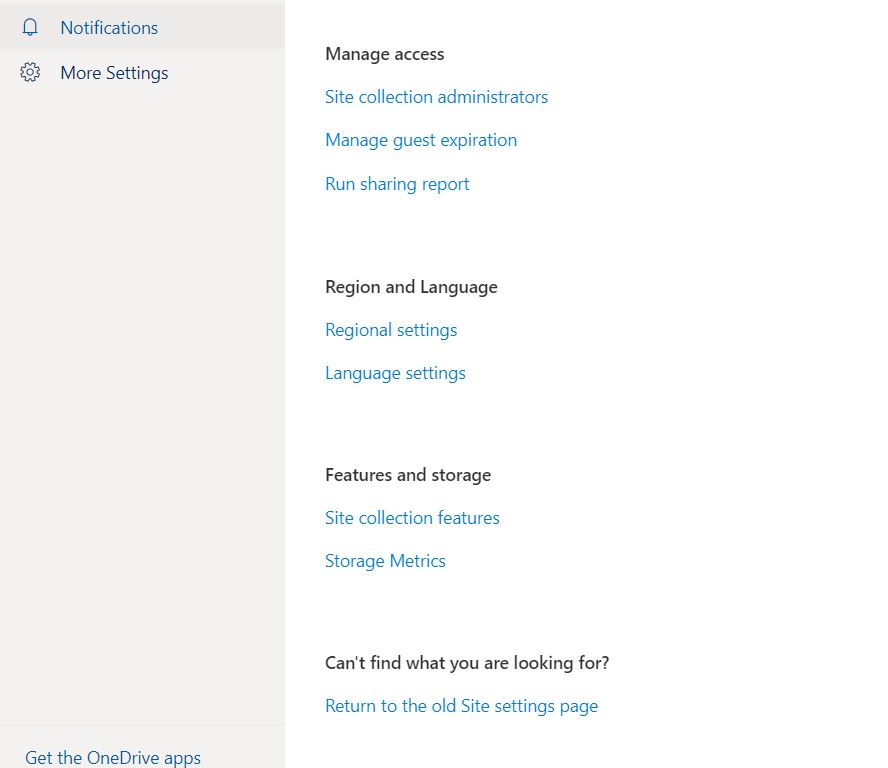
The OneDrive Settings menu provides access to detailed SharePoint site configuration options.
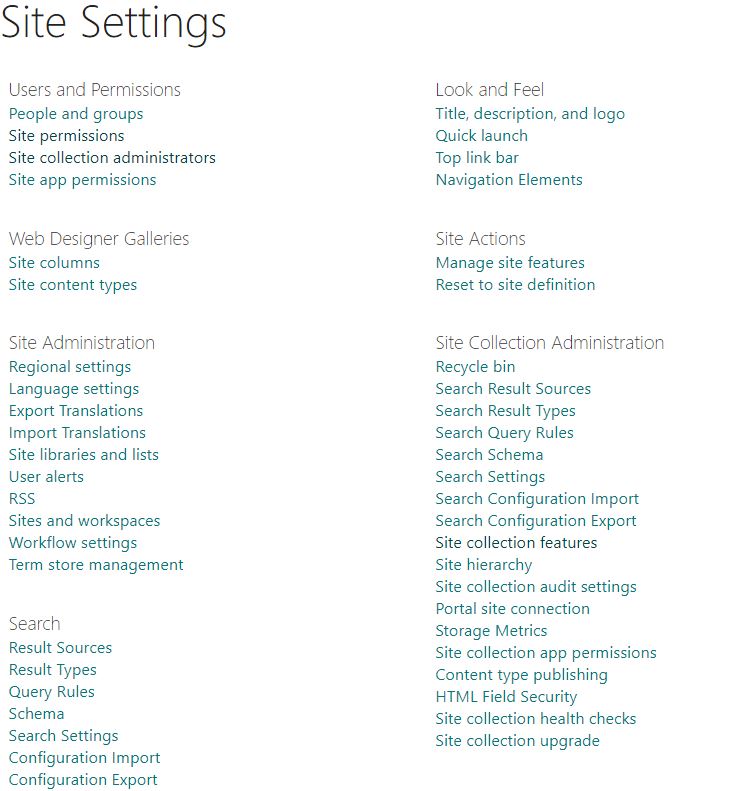
SharePoint site settings allow granular control over individual OneDrive configurations.
Central OneDrive Admin Settings
For organisation-wide OneDrive management, the admin centre sits within the SharePoint Admin Center. These global settings apply across all OneDrive profiles within your organisation.
Accessing the SharePoint Admin Center
Navigate to: [Your-Tenant-Name]-admin.sharepoint.com
All tenant-wide OneDrive settings are managed from this central location, ensuring consistency across your organisation.

The SharePoint Admin Center houses all central OneDrive configuration options.
Access Control Settings
The Access Control Settings page provides administrators with policies that enhance security and control how users access SharePoint and OneDrive. These settings include:
- Idle Session Logouts: Automatically log out users after a period of inactivity to protect unattended sessions
- Managed Device Restrictions: Allow access only from devices enrolled in your mobile device management (MDM) solution
- IP Address Restrictions: Limit access to defined IP address ranges, useful for office-based or VPN-only access
- Legacy Office App Blocking: Block access through older versions of Office Apps that cannot enforce device-based restrictions
Note that some of these settings require specific licensing, such as Enterprise Mobility + Security, for features like device compliance checking or domain join requirements.
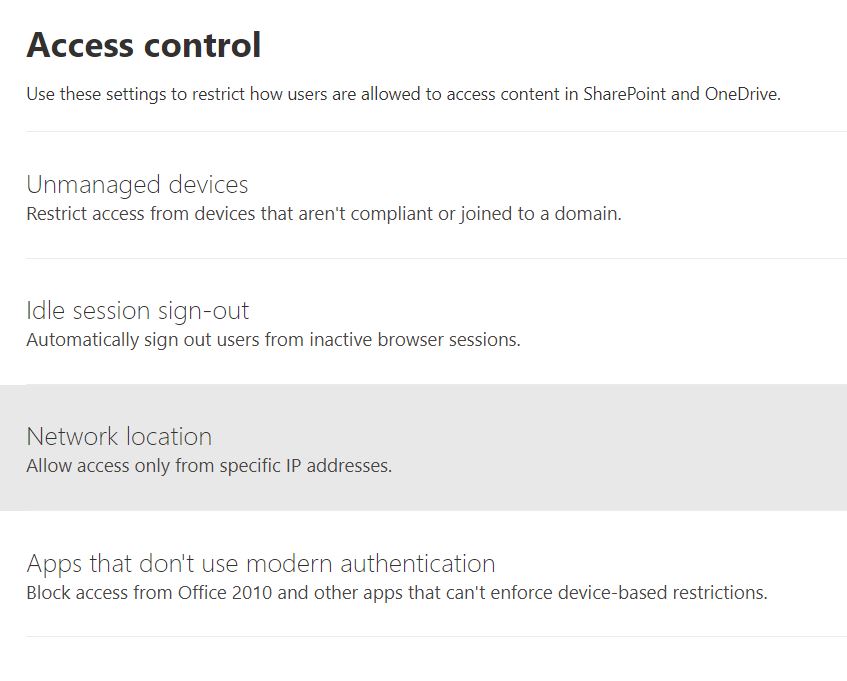
Access Control Settings allow you to implement security policies across OneDrive and SharePoint.
OneDrive Retention, Storage Limits, and Sync Settings
These critical settings govern data preservation, capacity allocation, and synchronisation behaviour across your organisation.
Retention Settings
OneDrive Retention allows administrators to set a default retention period for a user's OneDrive when their account is deleted. This is separate from the OneDrive Recycling Bin, which is set to 30 days by default (or 3 days if the bin is full). Retention policies ensure that valuable data isn't lost during employee offboarding.
Storage Limits
The Storage Limit setting controls the total space provisioned to each user's OneDrive. By default, this is set to 1TB per user, but can be increased up to a maximum of 5TB. This allows you to provision adequate storage for different user roles or departments.
Sync Settings
Sync settings give administrators fine-grained control over which files users can synchronise and from where. You can restrict syncing to specific file types or limit syncing to computers joined to a specified domain, enhancing security and bandwidth management.
Best Practices for OneDrive Administration
As you manage OneDrive across your organisation, keep these best practices in mind:
- Regularly audit access: Periodically review who has Site Collection Administrator access to individual OneDrives
- Implement retention policies: Establish clear data retention policies to protect against accidental deletion and meet compliance requirements
- Monitor storage usage: Keep an eye on storage consumption trends to plan capacity and optimise costs
- Enforce security settings: Take advantage of Access Control policies to ensure users access OneDrive from compliant devices and secure locations
- Document configurations: Keep records of any custom settings applied to individual OneDrives for troubleshooting and compliance purposes
Getting Help with OneDrive Management
OneDrive administration involves balancing security, storage management, and user productivity. If you're managing a large organisation or implementing complex policies, expert guidance can save time and prevent costly mistakes.
AT Technical specialises in helping organisations optimise their SharePoint and OneDrive environments. Whether you need to audit your current setup, implement new governance policies, or troubleshoot complex scenarios, our team can help.
Learn More About SharePointReady to Optimise Your OneDrive Environment?
Let AT Technical help you implement best practices, improve governance, and ensure your OneDrive deployment supports your organisation's collaboration and security objectives.