
Power Pages table permissions decide what every signed-in user can see and change inside a portal. Therefore, they represent the exact area where most portal projects succeed or fail. Typically, the main challenge involves several outside user types needing different slices of the same data. In this guide, we examine a facilities management customer portal. Specifically, it connects client companies, their sites, work orders, and the contractors doing the work. Consequently, the core rule, the working pattern, and our pre-go-live checks apply to portals in any sector.
What this means for your organisation
- Security is designed in, not bolted on. In Power Pages, the data model and permission model are the exact same decision. Consequently, changing one later usually means rebuilding the other.
- Simple role rules are cheaper to run. Furthermore, a model explained in one sentence per role is far easier to test, audit, and support.
- Ask your partner how they test it. Importantly, you must sign in as every role and check a test script before go-live. A screenshot of the settings is never proof.
The Scenario: Three Outside Roles for Power Pages Table Permissions
First, consider Contoso Facilities, which maintains buildings for several client companies. Each client has multiple sites, and each site has active work orders. For example, these jobs include broken boilers, lift inspections, or roof repairs. Over time, each work order collects job updates, photos, and completion notes. Consequently, three types of external users sign in to the portal. Meanwhile, Contoso's internal helpdesk team runs everything from a model-driven app:
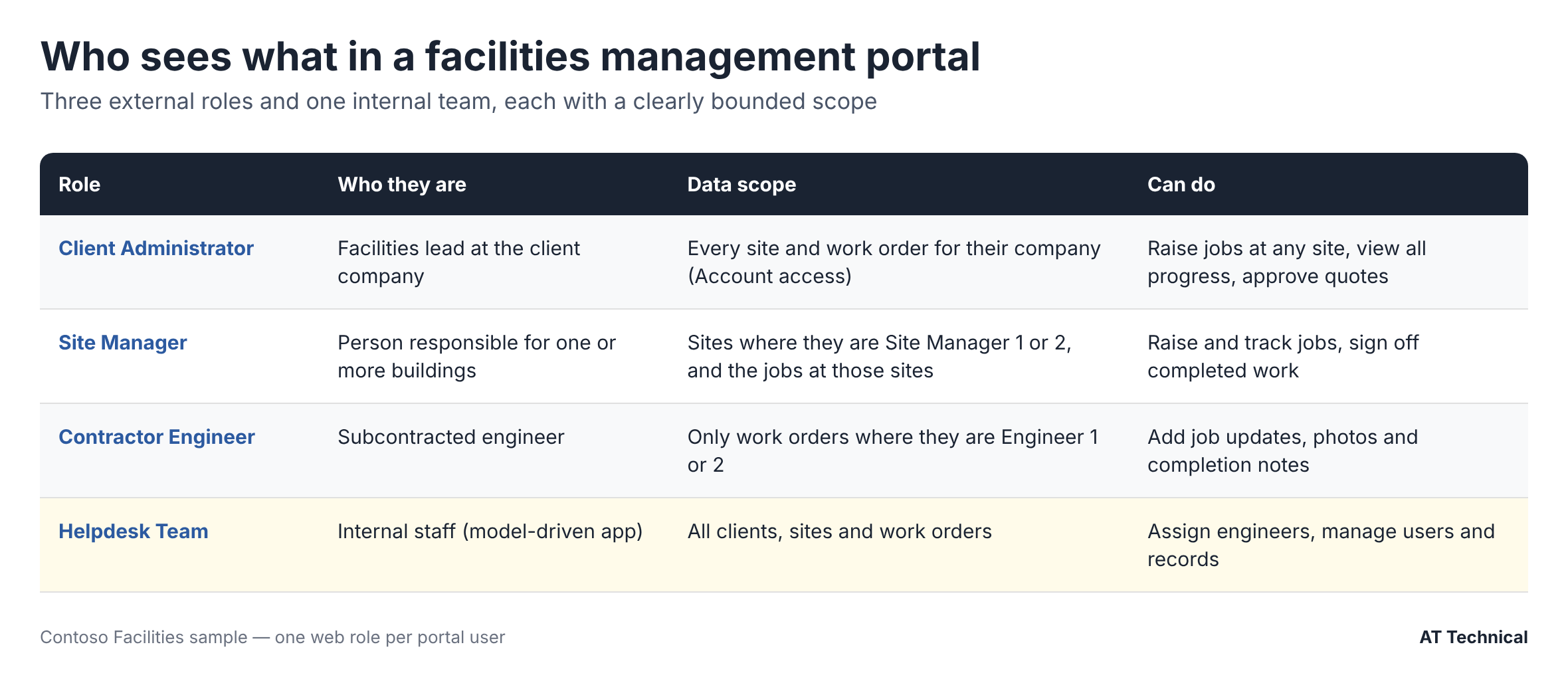
Four roles, each with a clearly bounded scope (Contoso Facilities sample).
On paper, this structure looks very simple. First, a client's facilities lead sees everything for their company. Second, a site manager sees only their assigned buildings. Third, a contractor sees only the specific jobs assigned to them. However, in practice, each role reaches the data via a different route. Furthermore, Power Pages enforces strict rules about which routes it will follow.
The Rule That Shapes Power Pages Table Permissions: Cascade Down Only
Power Pages offers several access types for a table permission. Specifically, these include Global, Contact, Account, Self, and Parent (child permissions). Additionally, sites with enhanced authorisation support a newer FetchXML-based Custom access type. In practice, child permissions are the true workhorse. First, you grant access to a parent record. Next, you add a child permission that follows a relationship to the records beneath it.
However, people easily miss the required direction. Specifically, a child permission follows a one-to-many relationship from the "one" side down to the lookup table. Crucially, it never travels back up.
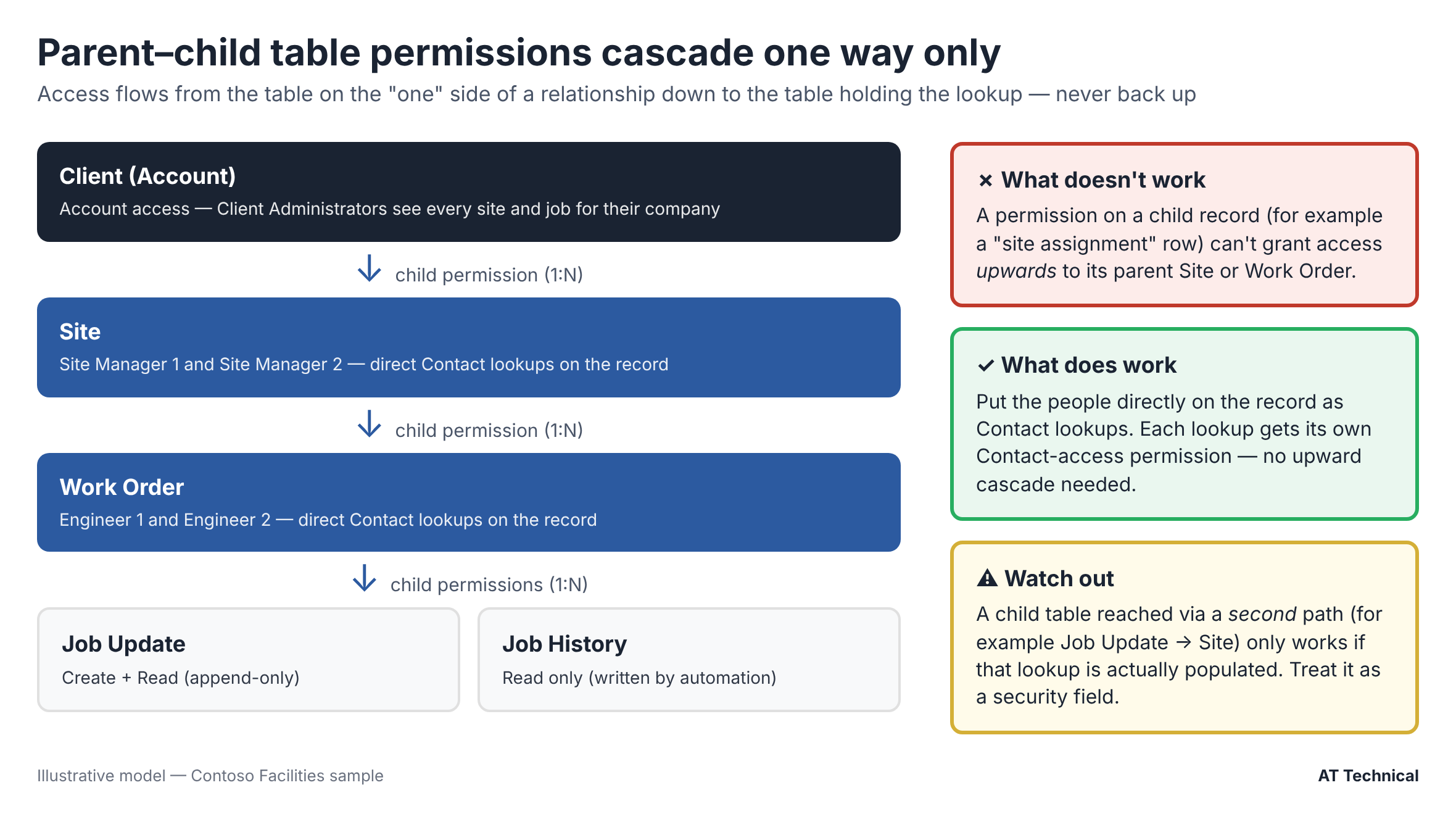
Parent–child permissions follow relationships downwards only.
The Tempting Design That Fails
- Assignment tables. Often, developers model "who looks after what" using a Site Assignment or Job Assignment table. The assumption is that a user's assignment row unlocks the site or job above it. However, it cannot do this. Because the assignment row sits on the "many" side, its permission cannot reach upwards to the Site or Work Order.
- A shared access table. Similarly, a single "portal access" junction table suffers from the exact same one-way problem. Furthermore, it creates extra records to keep in sync whenever someone changes role.
Ultimately, both options are reasonable database models. However, Power Pages simply cannot secure them. Therefore, before you finalise a portal data model, trace every role's path to every table. Specifically, confirm that each step goes down a relationship. We have seen this issue catch out multiple projects, and it is far cheaper to fix on paper than after the build.
The Design That Works: People Directly on the Record
Instead, the working pattern removes assignment tables entirely and places people directly onto the records:
Client Administrators: Account Access
First, each Client Administrator's Contact belongs to their company (Account). Consequently, an Account-access permission on Site gives them every site for their company. Then, child permissions carry that access down to work orders, job updates, and job history.
Site Managers: Two Contact Lookups on the Site
Second, the Site table holds Site Manager 1 and Site Manager 2 lookup columns to Contact. Each lookup has its own Contact-access permission. From there, child permissions run down to the work orders at that site.
Engineers: Two Contact Lookups on the Work Order
Third, the Work Order table holds Engineer 1 and Engineer 2 lookups, each with its own Contact-access permission. As a result, a contractor sees only their assigned jobs, and nothing about other sites.
A Fixed Ceiling of Two
Finally, agreeing on a maximum of two site managers and two engineers is a key business decision. Specifically, it keeps the permission count predictable and easy to explain. Conversely, if you truly need unlimited people per record, plan a different approach from day one.
Consequently, this creates five Work Order permissions. Specifically, Client Administrator, Site Manager 1, and Site Manager 2 act as children of their Site permissions. Meanwhile, Engineer 1 and Engineer 2 act as direct Contact permissions. Finally, Job Update and Job History permissions hang directly off each of those five.
The Hidden Dependency: Lookups That Carry Security
Still, one crucial detail is easy to overlook. Suppose site managers reach Job Update records through a lookup from each update back to its Site. Because that lookup looks like a convenience column, nobody treats it as important. However, if someone leaves it blank on new records, site managers simply stop seeing the latest updates. Nothing shows an error; instead, the records just vanish from view.
How to Protect Security Lookups
- First, classify the column as security-load-bearing in your design documents.
- Second, make the Site lookup required on the parent Work Order so a value always exists to copy.
- Third, populate it automatically when the update is created, regardless of how the record was entered.
- Finally, add a test case that signs in as a site manager and verifies that a new update appears.
In short, if a permission depends on a lookup, that lookup is part of your security model. Therefore, make it required or automate it, and always test it.
Our Pre-Go-Live Checks for Power Pages Table Permissions
- Export every table permission from the Portal Management app. Next, review the full list: table, access type, privileges, web roles, and parent.
- Check privileges are minimal. For instance, contractors rarely need Delete rights on job updates. Similarly, parent records like Work Orders often only need Read, Append, and Append To.
- Check the default roles. Specifically, Microsoft advises that Authenticated Users and Anonymous Users roles should grant only minimum access because they apply to everyone.
- Avoid Global access for business data. Instead, use relationship-based access so server-side filtering protects your data, rather than JavaScript.
- Agree a baseline. Furthermore, record the as-built permissions, note any accepted findings, and review them quarterly.
- Sign in as each role. Finally, use a test script with a test user per role to confirm what they can and cannot see. A contractor viewing another contractor's jobs is a data breach, not a bug.
Remember: Hiding Isn't Securing
Removing a column from a form or hiding a page from navigation never protects the underlying data. Specifically, if a table permission grants Read access, assume the user can reach that data. Ultimately, only Power Pages table permissions and column security enforce true access control.
The Same Pattern, Other Sectors
Fortunately, if you swap the table names, this exact structure fits many portals we build:
- Housing: Landlord organisation → property → repair request, with tenants and contractors as direct lookups.
- Supplier management: Supplier → contract → deliverable, with contract managers and supplier contacts.
- Membership bodies: Member organisation → application → review, with applicants and assessors.
In every case, the core question remains the same: does every role reach every table by going down a relationship?
Key Takeaways
- First, child permissions cascade down relationships only. Therefore, trace every role's route before building your data model.
- Second, direct Contact lookups on the record are usually simpler and more secure than assignment tables.
- Third, any lookup that a permission relies upon must be required or automated, and then thoroughly tested.
- Finally, baseline your as-built Power Pages table permissions and review them on a regular schedule.
Last checked against Microsoft Learn guidance: November 2026.
The Power Pages Technical Series
- Designing table permissions that actually work (you are here)
- Setting up Entra External ID for Test and Live
- Security headers with Power BI and Microsoft Forms
- Power BI Embedded with row-level security
- Five Power Automate lessons from production
Also in this collection: What a Power Pages portal really costs to run and our audit action tracker case study.
Related Resources & Reading
📘 Microsoft: Configure table permissions 📘 Microsoft: Security best practices for Power Pages 📗 Why Dataverse matters for scalable Power Platform solutions 🔧 Power Pages services from AT TechnicalPlanning a Portal With Several Types of User?
Getting the permission model right before you build is the cheapest security decision you will make. Therefore, we design, document, and test Power Pages permission models so every role sees only what it should.
AT Technical helps organisations:
- Map each role's access before fixing the data model
- Design and baseline table permissions
- Test every role with a written test script
- Review existing portals for permission gaps
We are certified Microsoft Power Platform solution architects and a Cyber Essentials certified business. Based in Manchester, we work with organisations across the UK.
Discuss Your Portal Security