

Setting up Power BI Embedded in Power Pages gives external users live dashboards without sending spreadsheets. Furthermore, external viewers do not need individual Power BI licences. However, the hardest part is ensuring each person sees only their own data. Fortunately, Power Pages supports this requirement through Power BI Embedded and row-level security (RLS). Consequently, when you configure it properly, one report can serve every role. Therefore, this guide walks through how we built it, the vital settings, and how we tidied the user experience.
What this means for your organisation
- No Power BI licences for external users. Specifically, a Power BI Embedded capacity serves the reports. Therefore, outside users never need their own Power BI licences.
- One report, many audiences. Additionally, RLS filters the same report per user. As a result, you maintain one report instead of one per client or role.
- Capacity is the main cost. However, the smallest embedded capacity (A1) costs roughly £555 a month if left running 24/7. Consequently, it is often the biggest item in a portal's running costs. See our Power Pages cost guide.
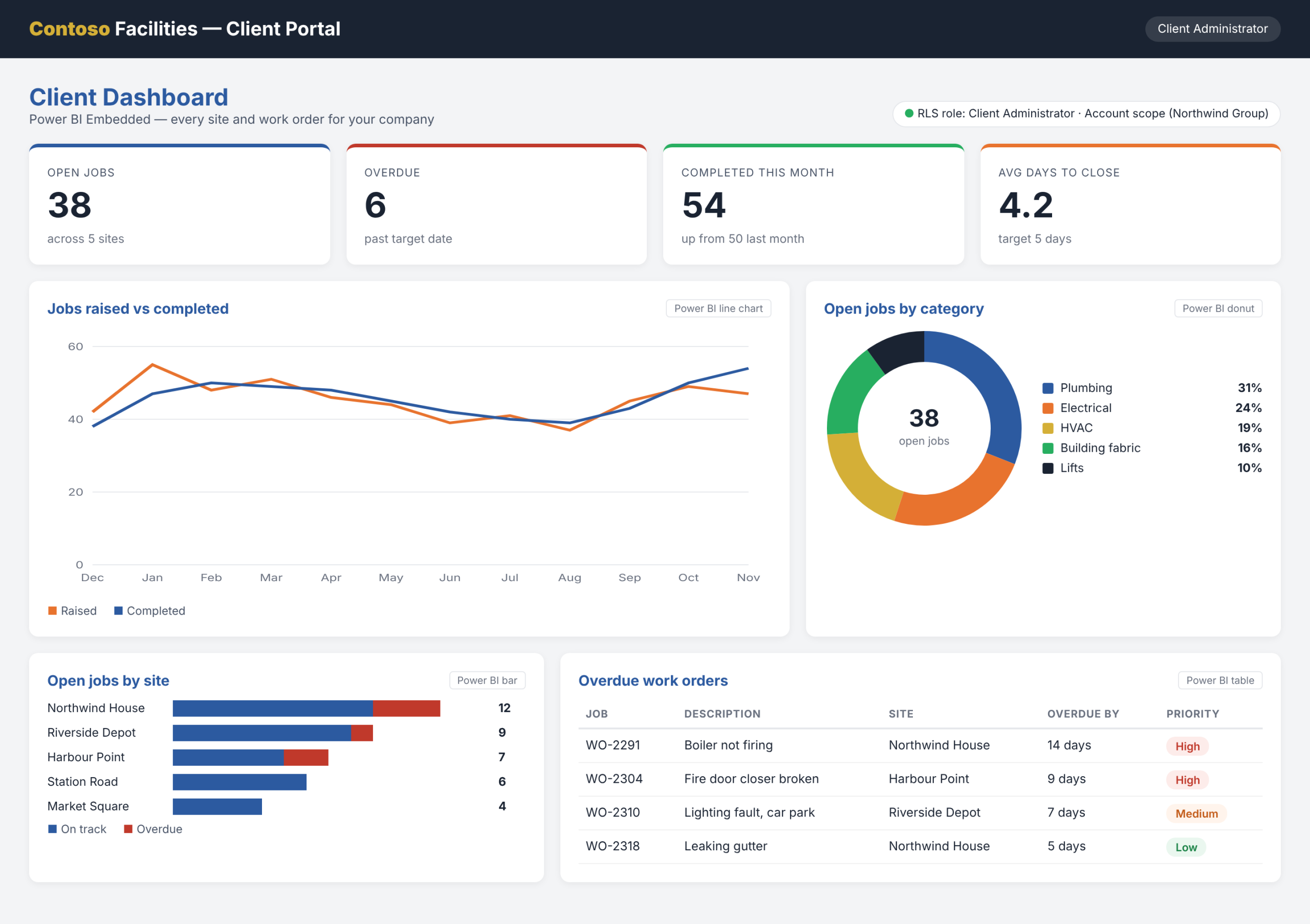
An example client dashboard, filtered by RLS to the signed-in Client Administrator's company (Contoso Facilities sample).
Choosing the Right Option for Power BI Embedded in Power Pages
First, the Power Pages Power BI component offers three access types. However, only one option suits external users viewing private data:
| Access type | Advantages | Disadvantages |
|---|---|---|
| Embed for your customers (Power BI Embedded) | External users need no Power BI licence or Entra account in your tenant. Furthermore, it supports RLS roles. | Requires paid embedded capacity. Additionally, whoever publishes needs a Pro licence. |
| Embed for your organisation | No capacity cost if users already hold Power BI licences. | Viewers need Entra accounts and licences. Therefore, it is not suitable for outside users. |
| Publish to web | Free and simple to set up. | Anyone with the link can see the data. Consequently, never use it for confidential portal data. |
In short, Microsoft's documentation clearly states that only Power BI Embedded supports RLS. Therefore, for a secure customer portal, the choice is already made for you.
How RLS Follows the Portal User
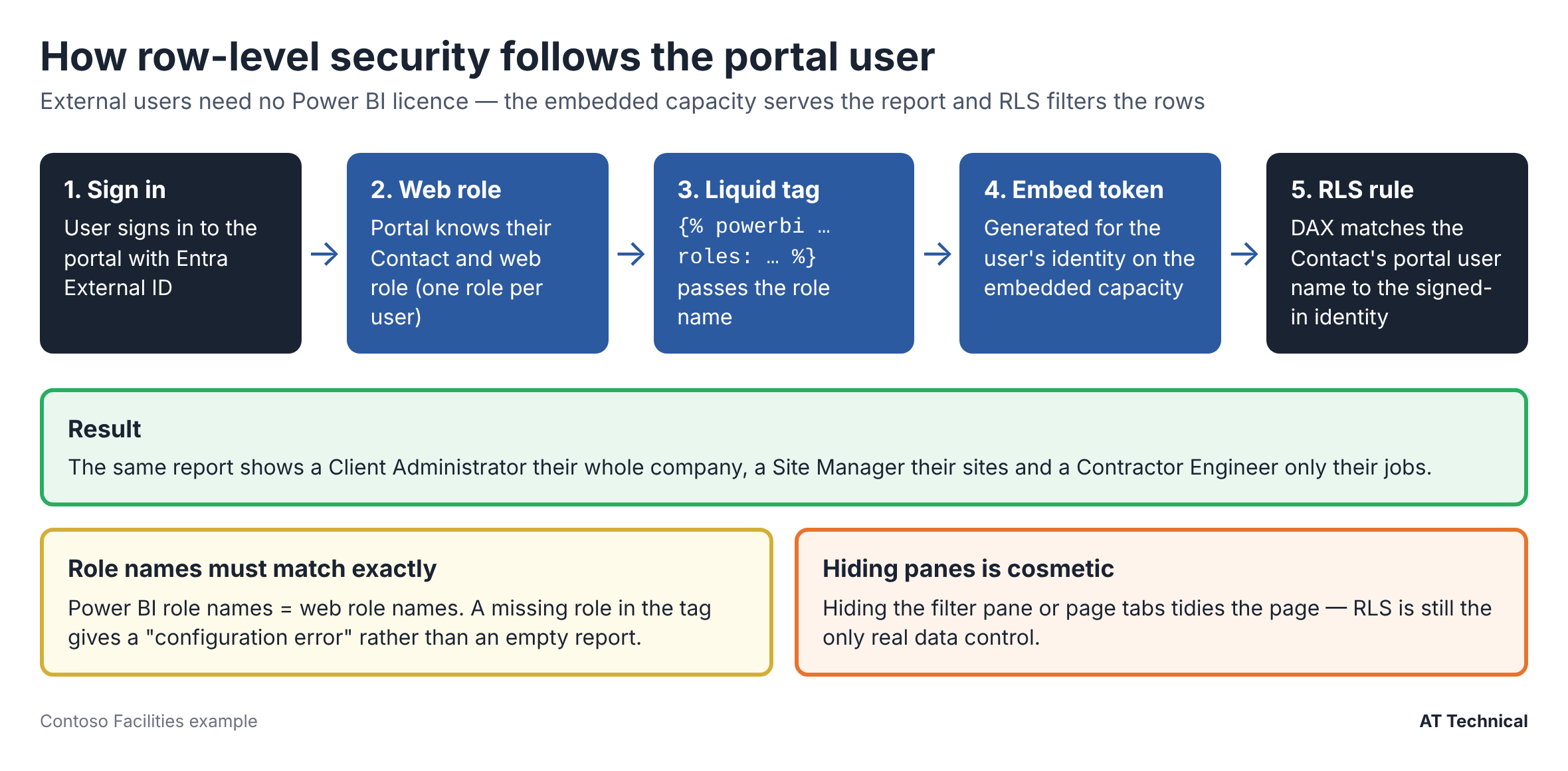
From sign-in to filtered report in five steps.
Step 1: Model the Data Around the Contact
First, RLS needs a clear path from the signed-in Contact to their specific rows. For instance, your portal's table permissions might already use Account access and Contact lookups (covered in Part 1). In that case, that exact path already exists. Consequently, designing your portal security and reporting security together saves massive rework later.
Step 2: Create Roles Named Exactly Like Your Web Roles
Next, open Power BI Desktop and create one RLS role per portal web role. Importantly, you must use the exact same role names. Specifically, each role's DAX filter matches the Contact's portal username to the identity passed by Power Pages. For example, Microsoft's guidance uses this formula:
Here, [User Name] is the Contact column holding the portal identity, rather than an email address. Instead, we used USERPRINCIPALNAME(), which returns the identical value for an embedded identity. Afterwards, each role filters onwards to the right data scope. For example, a Client Administrator sees the whole company, while a Site Manager sees their sites. Similarly, a Contractor Engineer sees only their own assigned jobs.
Step 3: Pass the Roles From the Portal
Finally, turn on Apply roles on the Power BI component, or pass them in the Liquid tag. Specifically, Microsoft's documentation shows a neat trick for dynamically passing the signed-in user's web roles:
{% powerbi authentication_type:"powerbiembedded" path:"https://app.powerbi.com/groups/<workspace-id>/reports/<report-id>/ReportSection" roles:webroles %}
Get These Wrong and the Report Won't Load
- First, if RLS is active but no matching role passes through, users see "a configuration error occurred".
- Second, the report and its underlying dataset must live in the exact same workspace.
- Third, you must enable "Embed content in apps" in the Power BI tenant's developer settings.
One Web Role per User
Early on, we agreed that each portal user holds exactly one web role. Because web roles are cumulative, a user with two roles gets combined access in both the portal and RLS. Therefore, assigning one role per user keeps testing and troubleshooting simple.
Tidying the Power BI Embedded in Power Pages Experience
By default, an embedded report displays the filter pane and bottom page tabs. However, you cannot hide either element with CSS because they sit inside the Power BI iframe. Instead, the Microsoft-supported method uses the powerbi-client JavaScript API inside the page's custom JavaScript:
var embedContainer = $(".powerbi")[0];
if (!embedContainer) { return; }
var report = powerbi.get(embedContainer);
function hidePanes() {
report.updateSettings({ panes: {
pageNavigation: { visible: false },
filters: { visible: false } } })
.catch(function (e) { console.log(e); });
}
report.on("loaded", hidePanes);
hidePanes();
});
Keep two important points in mind here. First, never mix this script with the older navContentPaneEnabled and filterPaneEnabled settings. Second, if you hide the page tabs, check your report canvas carefully. Specifically, space previously covered by the tab bar may now show underlying content. Fortunately, you can fix this easily in Power BI Desktop and use in-report buttons for navigation.
Hiding Is Cosmetic
Remember that hiding the filter pane only tidies the visual page. It never restricts underlying data. Ultimately, RLS is the only control that decides what data a user can view.
Running Power BI Embedded in Production
Separate Live From Test Workspaces
Putting Dev, Test, and Live reports into one paid workspace is convenient. However, it mixes Live data with non-production access. Therefore, using a separate Pro workspace for Dev and Test is cleaner and cheaper.
Make the Report Path an Environment Setting
If you hard-code the report ID into the page, a deployment can point Live at the Dev report. Instead, store the path inside an environment-specific setting.
Check the Refresh Time Zone
Our models imported data from Dataverse on a schedule (13 refreshes daily in Live). However, refresh times follow the model's time zone, which defaults to UTC. Consequently, UK refresh times shift by an hour in summer.
Watch the Capacity Bill
Microsoft bills an A SKU per hour while it runs. Therefore, if nobody uses the portal overnight, pausing the capacity on a schedule cuts costs significantly. Conversely, if users work across time zones, budget for 24/7 operation.
Key Takeaways
- First, use "Embed for your customers" (Power BI Embedded), as it is the only option supporting RLS for external users.
- Second, name your RLS roles identically to your web roles and pass them dynamically from the page.
- Third, design your portal permissions and report security together around the Contact record.
- Fourth, hide panes using the JavaScript API, and remember that visual hiding is purely cosmetic.
- Finally, plan ahead for capacity costs, workspace separation, and environment-specific report paths.
Last checked against Microsoft Learn guidance: November 2026.
The Power Pages Technical Series
- Designing table permissions that actually work
- Setting up Entra External ID for Test and Live
- Security headers with Power BI and Microsoft Forms
- Power BI Embedded with row-level security (you are here)
- Five Power Automate lessons from production
Also in this collection: What a Power Pages portal really costs to run and our audit action tracker case study.
Related Resources & Reading
📘 Microsoft: Enable row-level security in Power BI on Power Pages 📘 Microsoft: Add a Power BI component 📘 Microsoft: Dataverse Liquid tags (powerbi) 🔧 Power Pages services from AT TechnicalWant Dashboards Inside Your Portal?
We design Power BI reports and the security behind them. As a result, each external user sees live figures for their own organisation inside your portal without extra licences.
AT Technical helps organisations:
- Model data for row-level security from the start
- Embed reports with roles matched to web roles
- Right-size and schedule embedded capacity
- Document refresh, ownership, and ongoing support
We are certified Microsoft Power Platform solution architects and a Cyber Essentials certified business. Based in Manchester, we work with organisations across the UK.
Discuss Embedded Reporting